2. Create Account
The E-Tutors City Tutor Onboarding System is designed to verify tutor identity, maintain educational quality, and securely activate teaching accounts.
The onboarding process includes registration, self-verification, admin approval, Zoom activation, and final dashboard access.
2.1. Tutor Onboarding Workflow
The onboarding process contains 4 main stages:
- Registration & Self-Activation
- Document Upload & Verification
- Admin Review & Zoom Activation
- Full Dashboard Access
2.2. Registration & Self-Activation
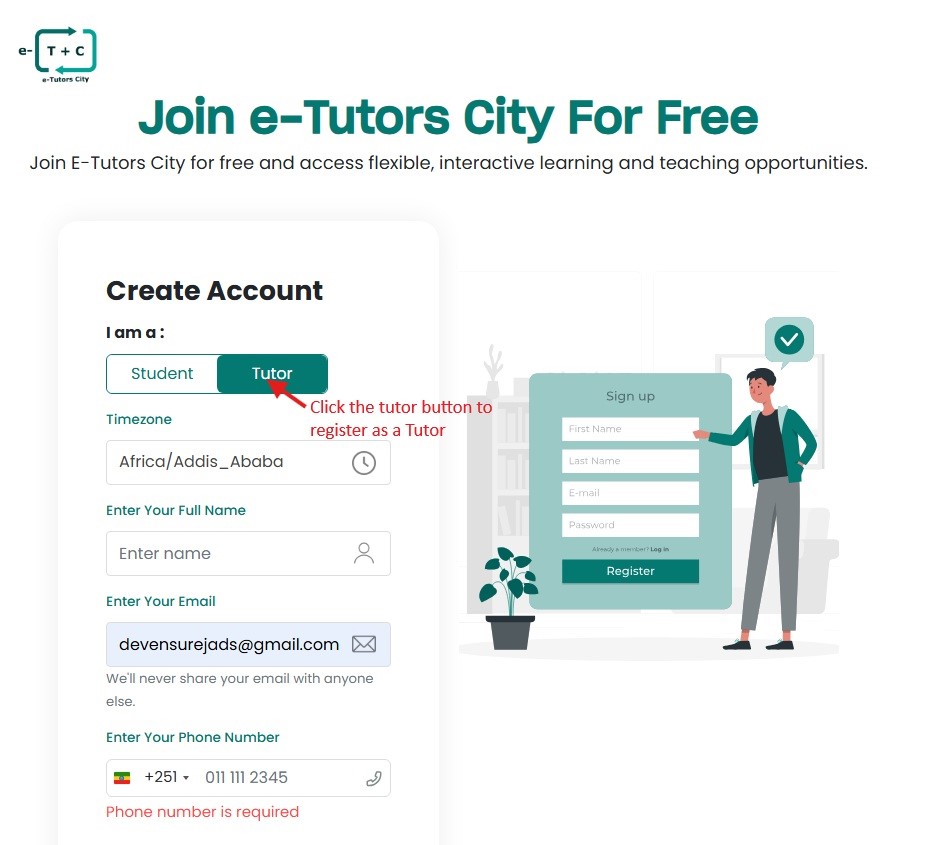
2.2.1. Step 1: Select Tutor Account
Visit the Sign Up page and select:
- I am Tutor
This opens the professional tutor registration workflow.
2.2.2. Step 2: Enter Basic Information
Tutors must provide:
- Timezone (auto-detected)
- Full Name
- Valid Email Address
- Phone Number
- Secure Password
2.2.3. Step 3: Verify Your Account
Before admin review begins, tutors must complete both verification steps.
SMS Verification
A 6-digit verification code will be sent to your phone.
- Sender: Bright Tech
- Enter the code in the verification field
Email Activation
An activation link will also be sent to your email.
- Open your inbox
- Click the activation link
- Verify your email ownership
Mandatory Verification Your application will not be reviewed until both SMS and Email verification are completed.
If you cannot find the activation email in your inbox, please check your Spam, Junk, or Promotions folders. Some email providers may automatically filter verification emails. To avoid missing important notifications:
- Mark the email as Not Spam
- Add our email address to your safe sender list
- Ensure your registered email address is active and correctly entered during registration
2.3. Upload Required Documents
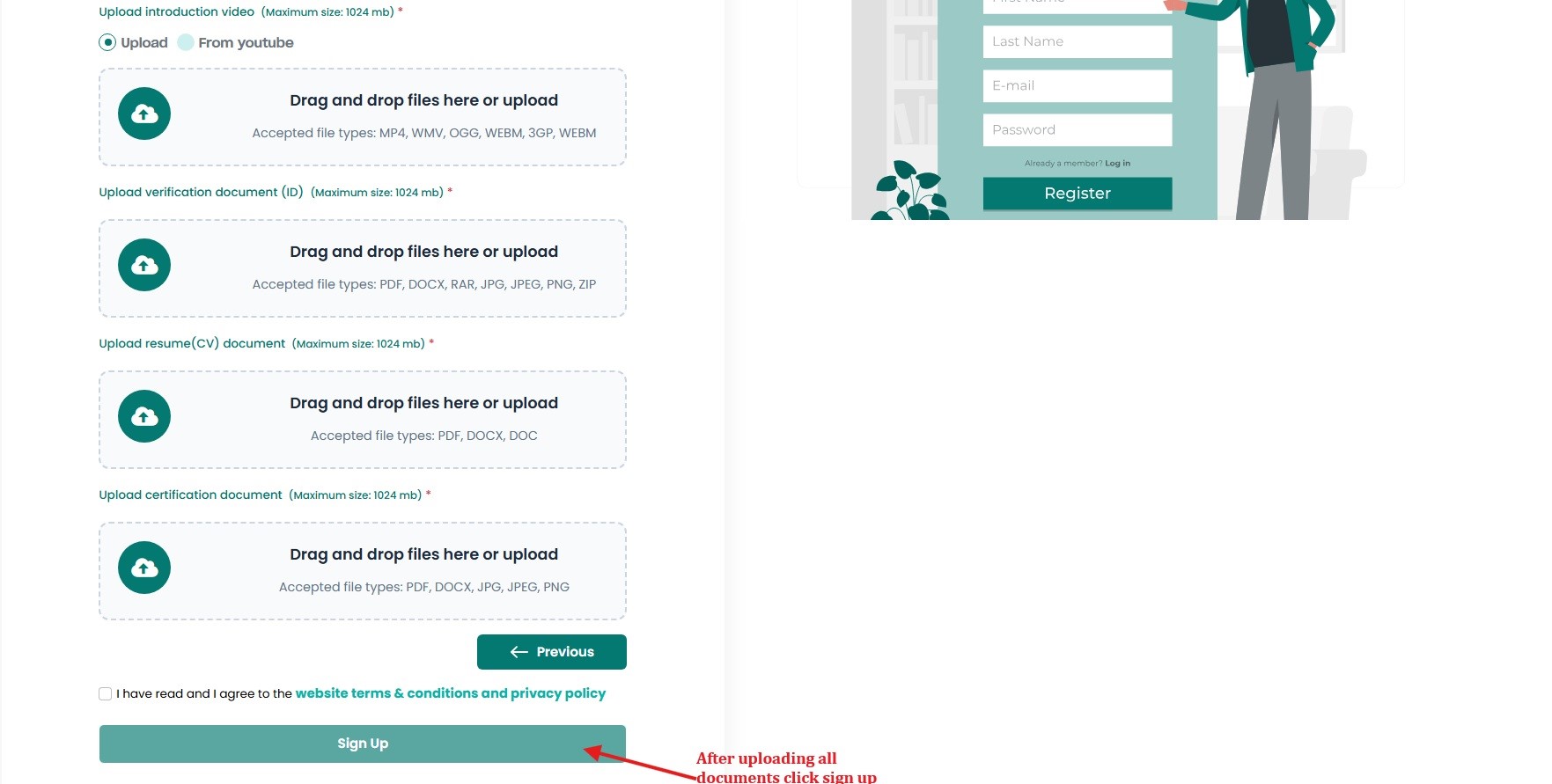
After activation, upload the required verification documents.
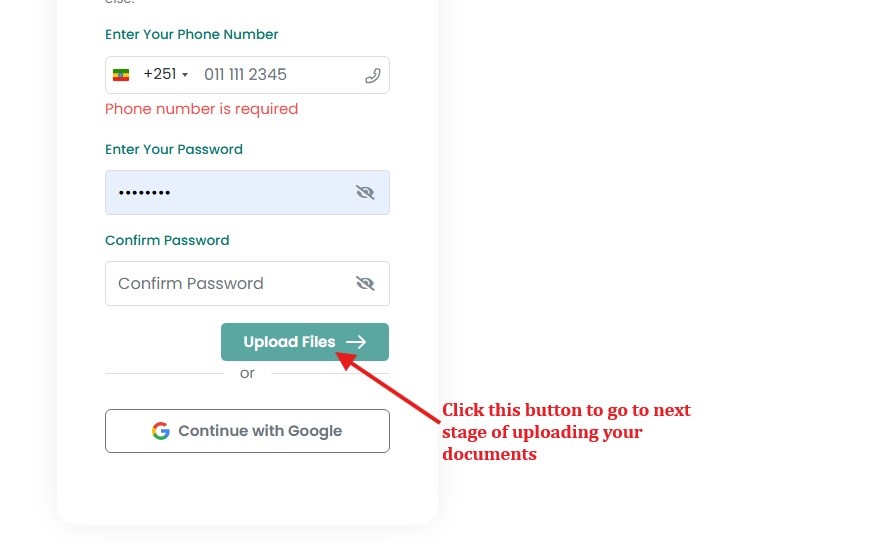
2.3.1. Required Files
- Introduction Video: Max 1024 MB (MP4, WMV, WEBM). This is your first impression for students!
- Verification Document: Government-issued ID (PDF, JPG, PNG).
- Resume (CV): Professional history (PDF, DOCX).
- Certifications: Academic and professional certificates.
2.4. Admin Review Process
After submission, your account status becomes:
- Pending Admin Review
During this phase:
- You cannot access the tutor dashboard
- Admins manually verify documents
- Video quality and subject expertise are reviewed
Application Rejection If your application is rejected, you will receive an Email/SMS notification explaining the reason and may be asked to re-upload documents.
2.5. Zoom Activation
Once approved, the system sends a Zoom integration link.
2.5.1. Important Rules
- The Zoom link expires after 8 hours
- You must authorize Zoom to activate live teaching features
- Your account remains inactive until Zoom activation is completed
8-Hour Activation Window If the Zoom activation link expires, contact support to request a new activation link.
2.6. Full Account Access
After successful Zoom activation, your tutor account becomes fully active.
You can now:
- Access Tutor Dashboard
- Manage availability schedule
- Set tutoring rates
- Create Courses & Group Classes
- Host live Zoom sessions
- Access earnings and withdrawals
2.7. Video Tutorial: Tutor Registration
2.8. Need Help?
If you experience issues with:
- File uploads
- SMS verification
- Email activation
- Expired Zoom links
Please contact the support team:
-
Phone Number:: +251973606060
-
Telegram Support Group:: https://t.me/+QZ220FS03Ig0NjRk
-
Official Support Email:: [email protected]