8 Courses Manager
8.1. Courses Module
The Courses Module is your central workspace for creating, managing, and tracking your educational content.
You can access it from the sidebar via:
- Courses Manager
- Course Transactions
8.2. Create a Course
The course creation process is divided into four sections to ensure your content is complete and professional.
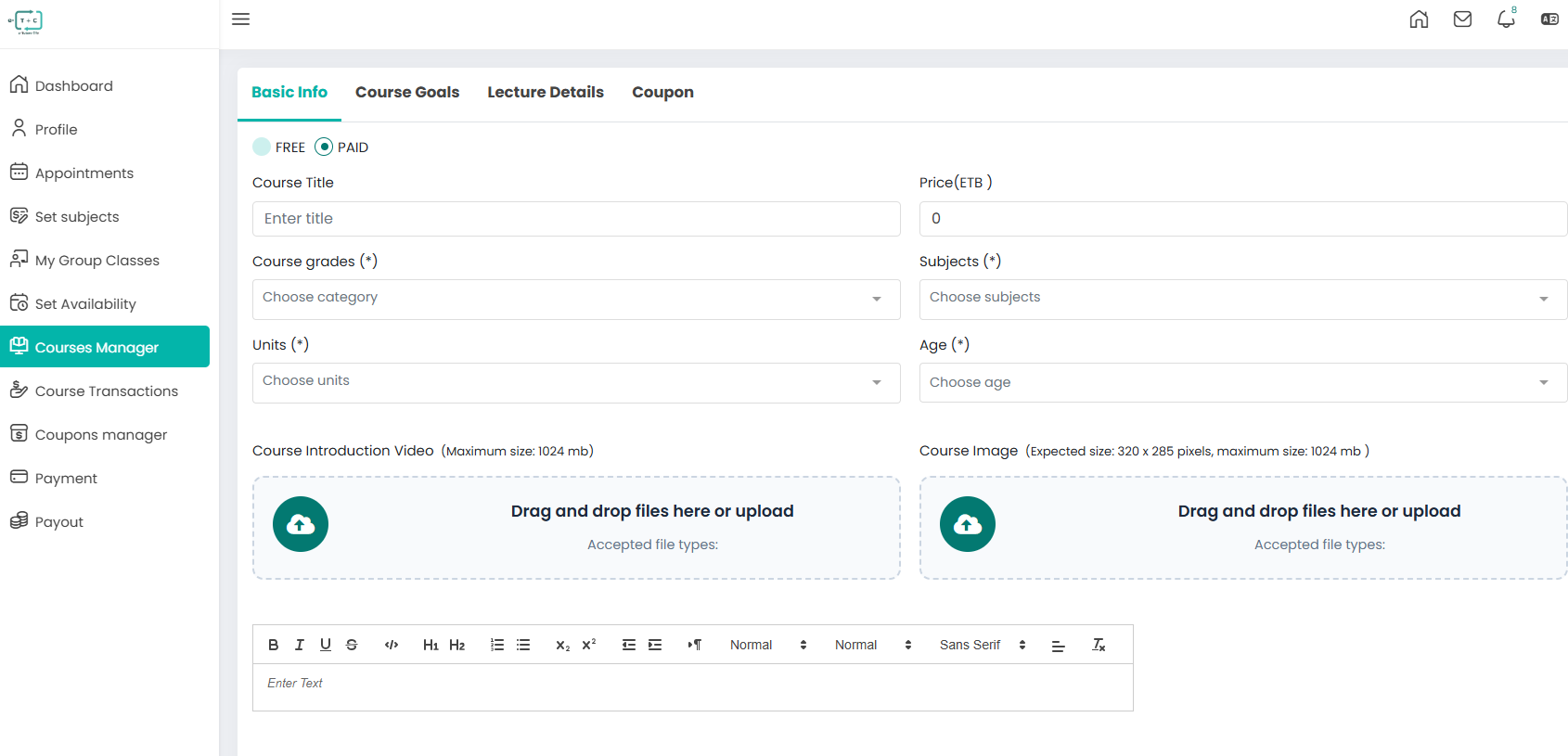
8.2.1. Basic Info
Navigate to Courses Manager > Create a Course in your sidebar dashboard.
-
Course Title & Description
Provide a clear title and detailed description of your course. -
Pricing
Choose between:- FREE
- PAID (ETB)
-
Categorization
Assign:- Grade
- Subject
- Unit
- Target Age
This improves course visibility for students.
-
Media Assets
- Upload a Course Introduction Video (max 1024 MB)
- Upload a Course Image (recommended size: 320 × 285 px)
8.2.2. Course Goals
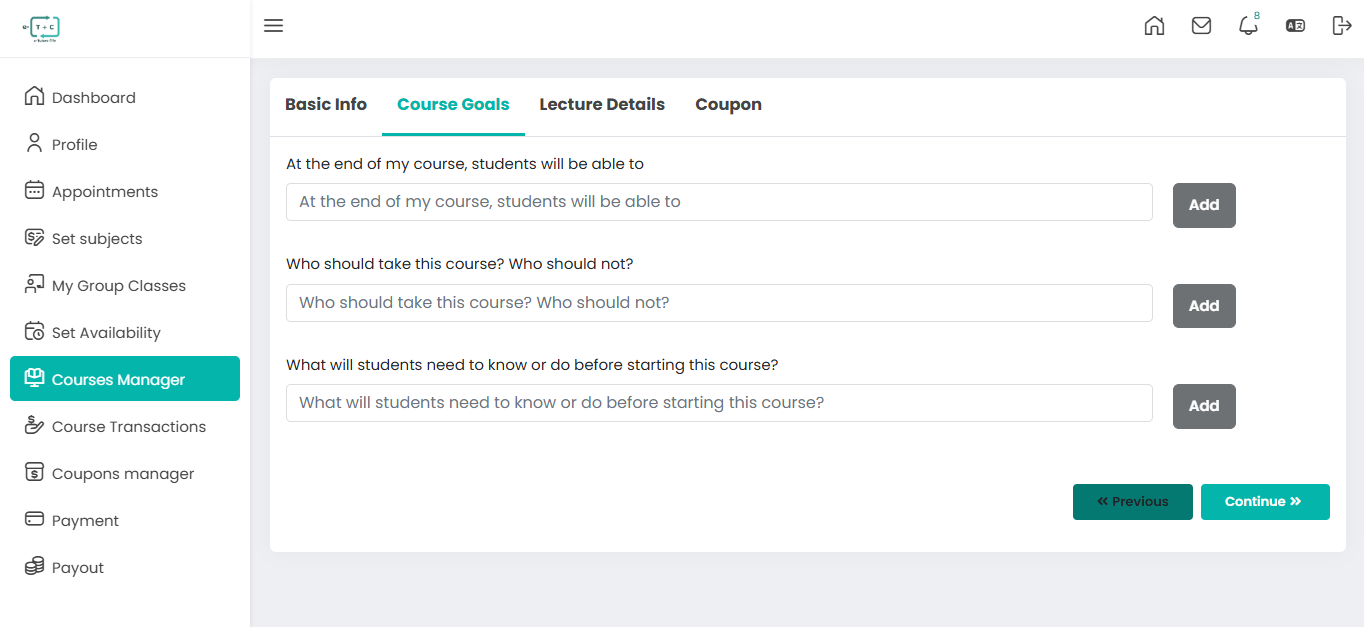 Define expectations for your students:
- What students will learn or achieve
- Who the course is designed for
- Any required prerequisites or prior knowledge
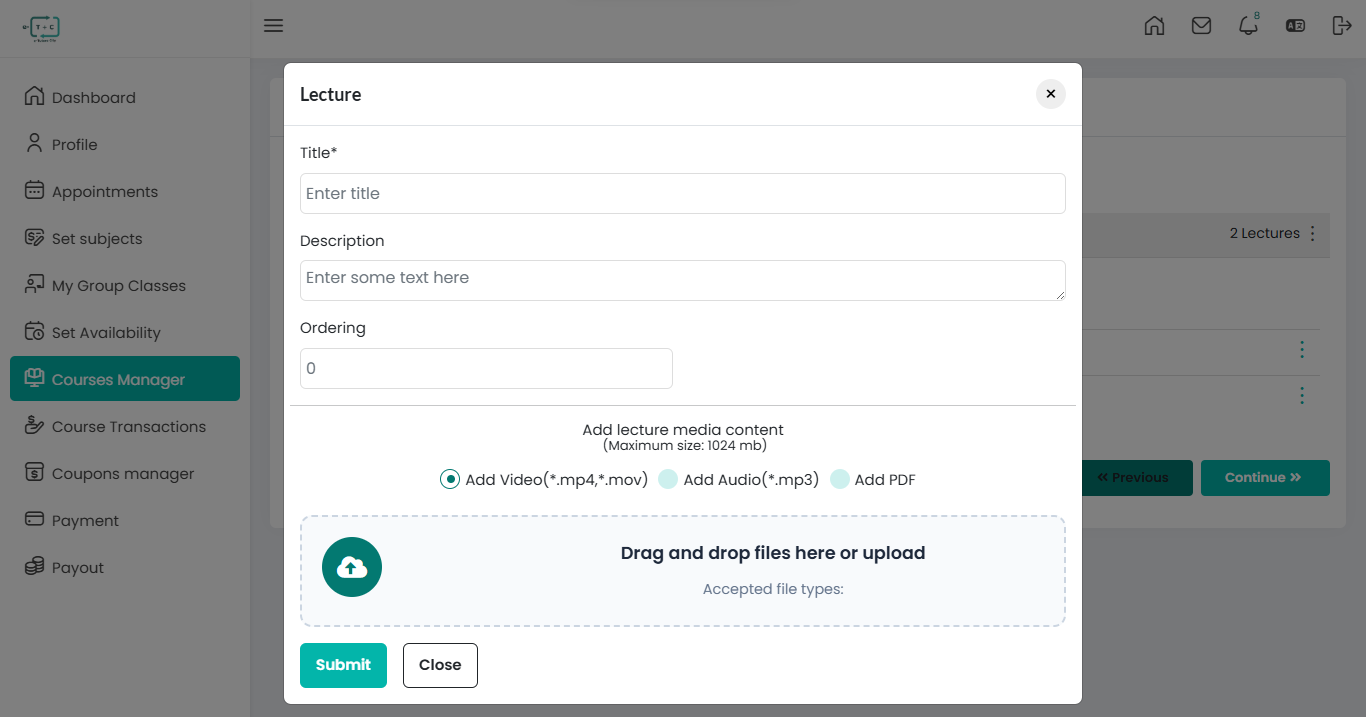
8.2.3. Lecture Details
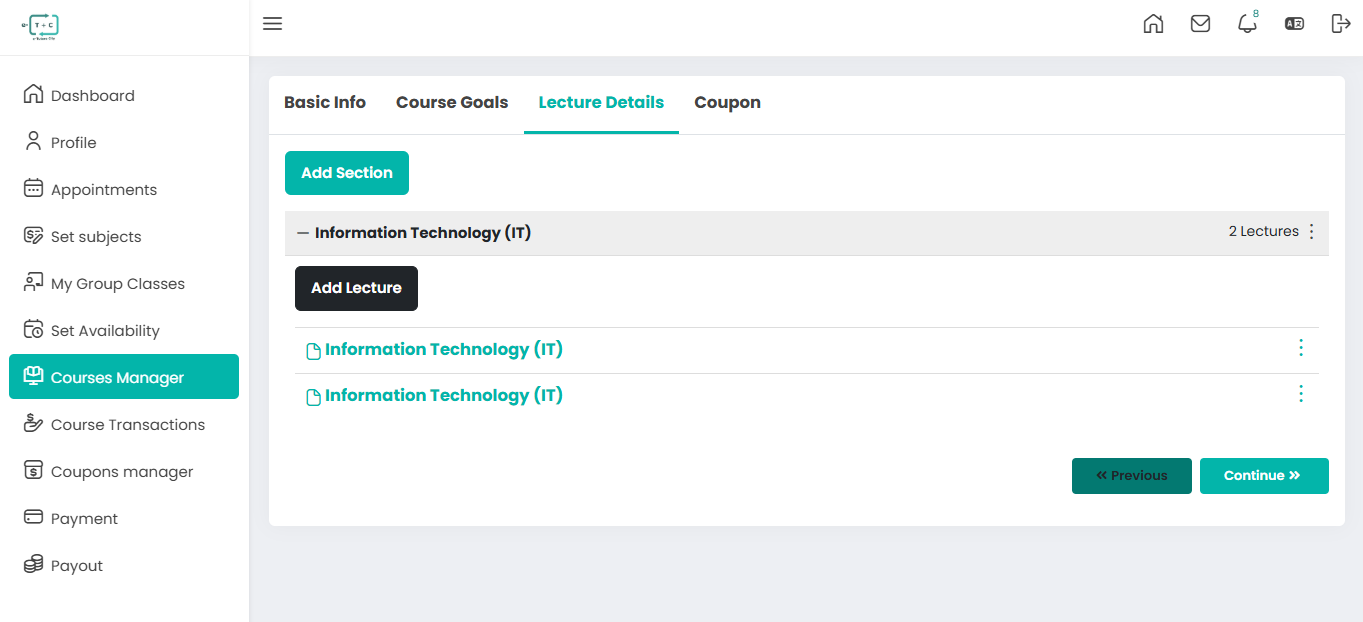
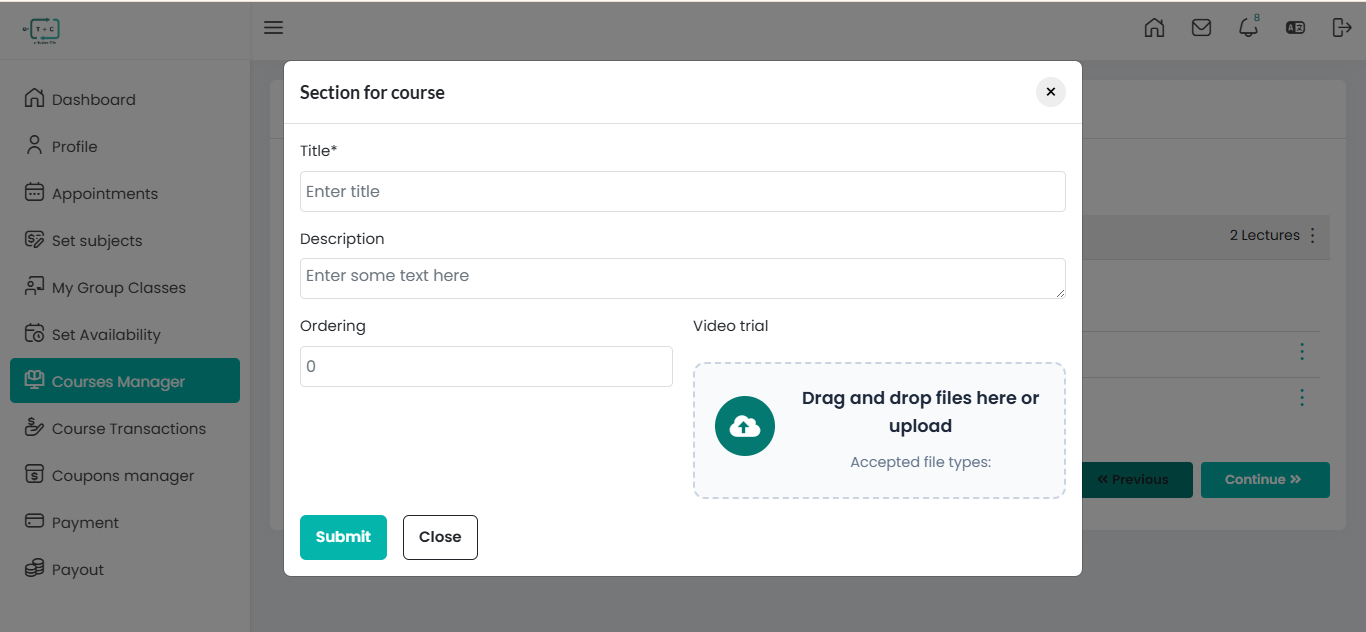
- Structure: Organize content using Sections
-
Lectures: Add lessons inside each section, Video content.
-
Requirement: A course must include at least one lecture to be submitted for approval.
8.2.4. Coupons (Course Discounts)
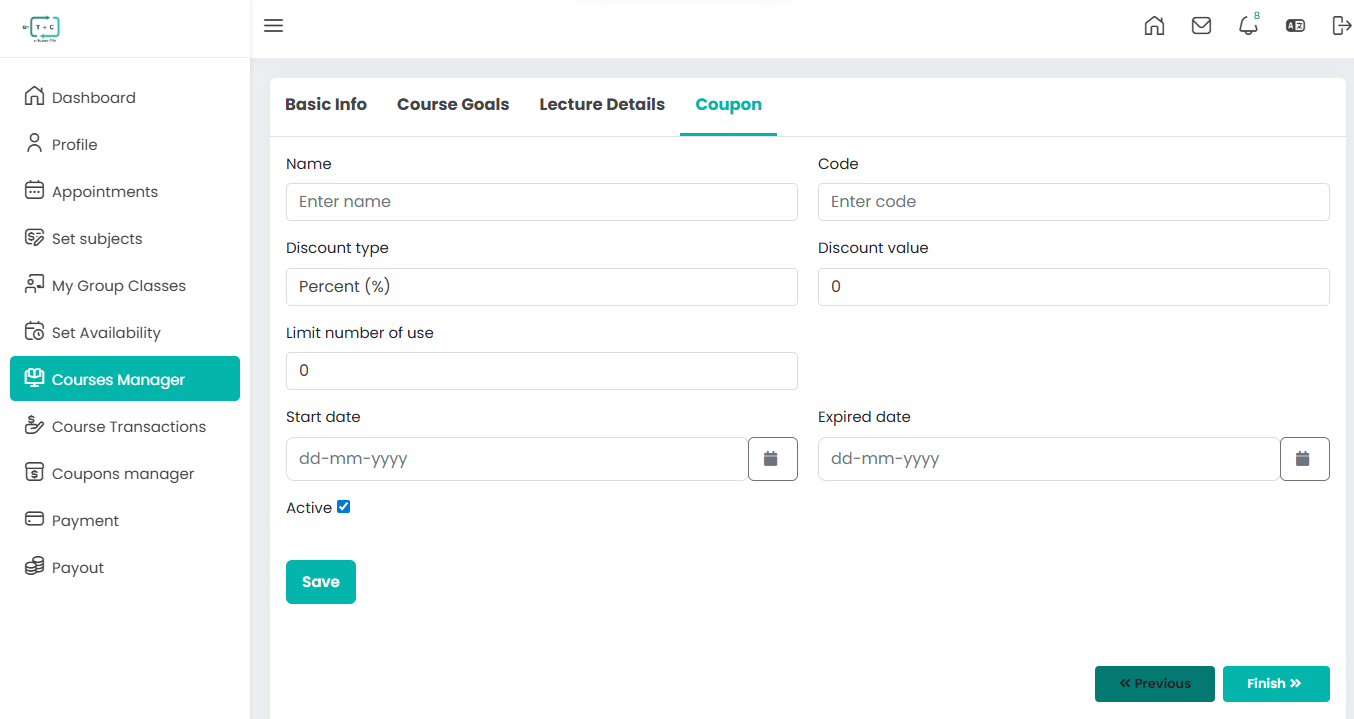 You can create course-specific discount codes.
- Coupon Code — Unique code for students
- Discount Type — Percentage (%) or fixed amount
- Usage Limit — Maximum number of uses
- Start & Expiry Dates — Control validity period
- Activation — Enable or disable the coupon
How it works:
- Students enter the coupon during checkout
- Discount is applied automatically
- Expired or inactive coupons are rejected
8.3. Course Delivery & Management
Once your course is published, the platform manages delivery and interaction.
8.3.1. For Students
- Access all course lessons anytime
- Download learning materials
- Submit ratings and reviews
8.3.2. For Tutors
- Manage content via Courses Manager
- Add or update lectures and sections
- Track enrollments and course performance
- Monitor student engagement
8.4. Earnings & Payments
Track your income using:
- Payment
- Course Transactions
- Payout
8.4.1 Earnings Flow
-
Student Payment: The student purchases a course.
-
Platform Commission: A standard commission is deducted automatically.
-
Course Transactions: The transaction is recorded in your dashboard.
-
Tutor Wallet: The remaining balance is credited to your wallet.
-
Payout Request: You request withdrawal from the Payout section.
-
Bank Transfer: Funds are transferred to your registered bank account.
Ensure your Bank Information is correctly configured in the Payout section to avoid delays in receiving payments.