12. Managing Favorites
The Favorites feature helps students quickly access their preferred learning content and instructors without searching again.
This section covers:
- Favorite Tutors
- Favorite Group Classes
- Favorite Courses
Students can save their preferred learning resources and access them anytime from the dashboard sidebar.
12.1. Accessing Your Favorites
To open your saved favorites:
- Locate the Sidebar Menu on the left side of the dashboard
- Select one of the following sections:
- Favorite Tutor
- Favorite Group Class
- Favorite Course
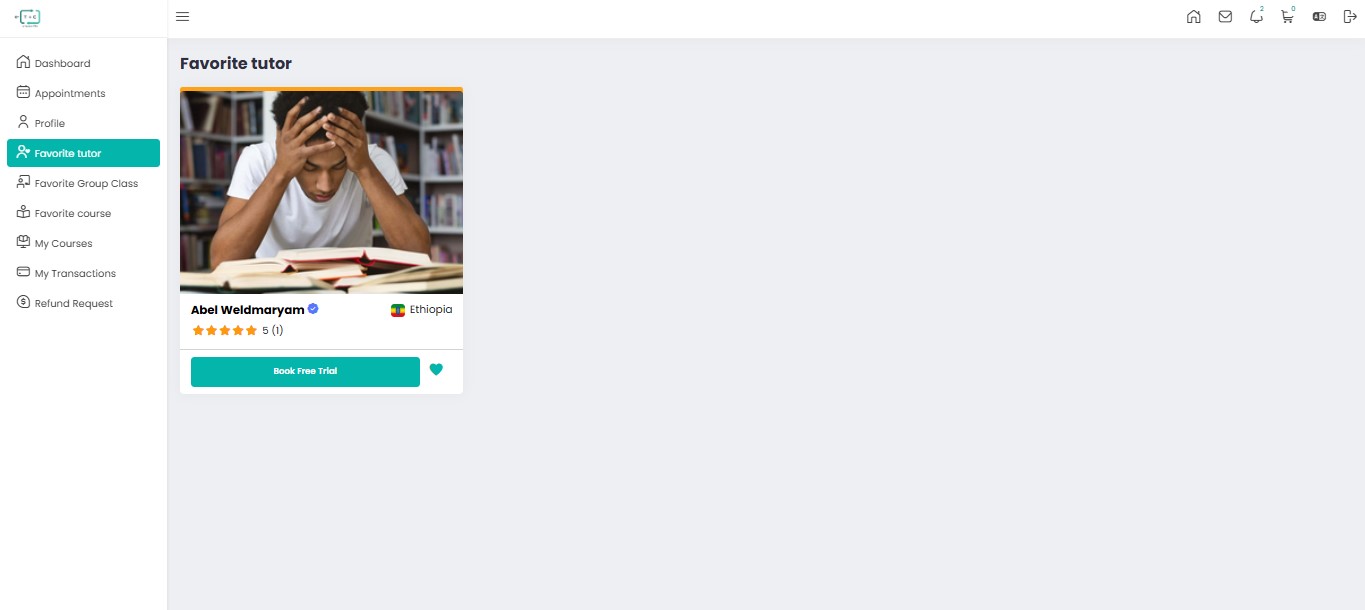
12.1.1. Favorite Tutors
The Favorite Tutors section allows students to save instructors for quick access and future bookings.
Students typically use this feature to:
- Rebook trusted tutors
- Monitor tutor availability
- Compare instructors
- Quickly access tutor profiles
- Schedule future sessions faster
12.1.2. Understanding the Tutor Card
Each tutor card displays important tutor information.
| Feature | Description |
|---|---|
| Profile Picture | Tutor profile image |
| Verified Badge | Indicates platform-verified tutors |
| Country / Location | Tutor location information |
| Rating & Reviews | Average student feedback score |
| Book Free Trial | Start a free introductory session |
| Heart Icon | Remove tutor from favorites |
12.1.3. Booking a Free Trial
If the tutor offers trial sessions:
- Click Book Free Trial
- Open the tutor schedule
- Select an available time slot
- Confirm your booking
This helps students evaluate the tutor before purchasing lessons.
12.1.4. Removing a Favorite Tutor
To remove a tutor from the list:
- Click the Heart Icon
- The tutor will automatically be removed from your favorites
12.1.5. Favorite Group Classes
The Favorite Group Class section allows students to save live classes for later enrollment.
Students can use this feature to:
- Track upcoming classes
- Save interesting webinars
- Compare schedules
- Monitor class availability
- Access classes quickly
Group Class Information
Saved group classes may display:
- Class title
- Subject category
- Tutor name
- Available slots
- Scheduled date & time
- Price information
- Enrollment status
Joining a Saved Group Class
To enroll in a saved class:
- Open the Favorite Group Class section
- Select the desired class
- Click Book Now
- Complete the payment process if required
12.2. Favorite Courses
Students can also save full courses into the Favorite Course section.
This helps learners organize long-term learning goals and revisit courses later.
12.2.1 Course Card Features
Each saved course may include:
| Feature | Description |
|---|---|
| Course Thumbnail | Visual course preview |
| Course Title | Name of the course |
| Instructor Name | Course creator or tutor |
| Course Price | Enrollment cost |
| Progress Status | Current learning progress |
| Enroll Button | Start or continue the course |
12.2.1. Enrolling in a Favorite Course
To start learning:
- Open the Favorite Course section
- Select the course
- Click Enroll Now
- Complete enrollment or payment
After enrollment, the course appears inside:
- My Courses
- Student Dashboard
- Learning Progress Section
12.2.3. Benefits of Using Favorites
Using the Favorites system helps students:
- Save time searching
- Organize preferred learning content
- Quickly access tutors and classes
- Monitor upcoming sessions
- Simplify future bookings
Pro Tip Use Favorites to build your personalized learning library and quickly access the tutors, classes, and courses you use most frequently.