13. Managing My Courses
The My Courses section is your personal learning hub. It allows you to track your academic progress, view enrollment details, and jump directly into your lessons.
13.1 Accessing Your Courses
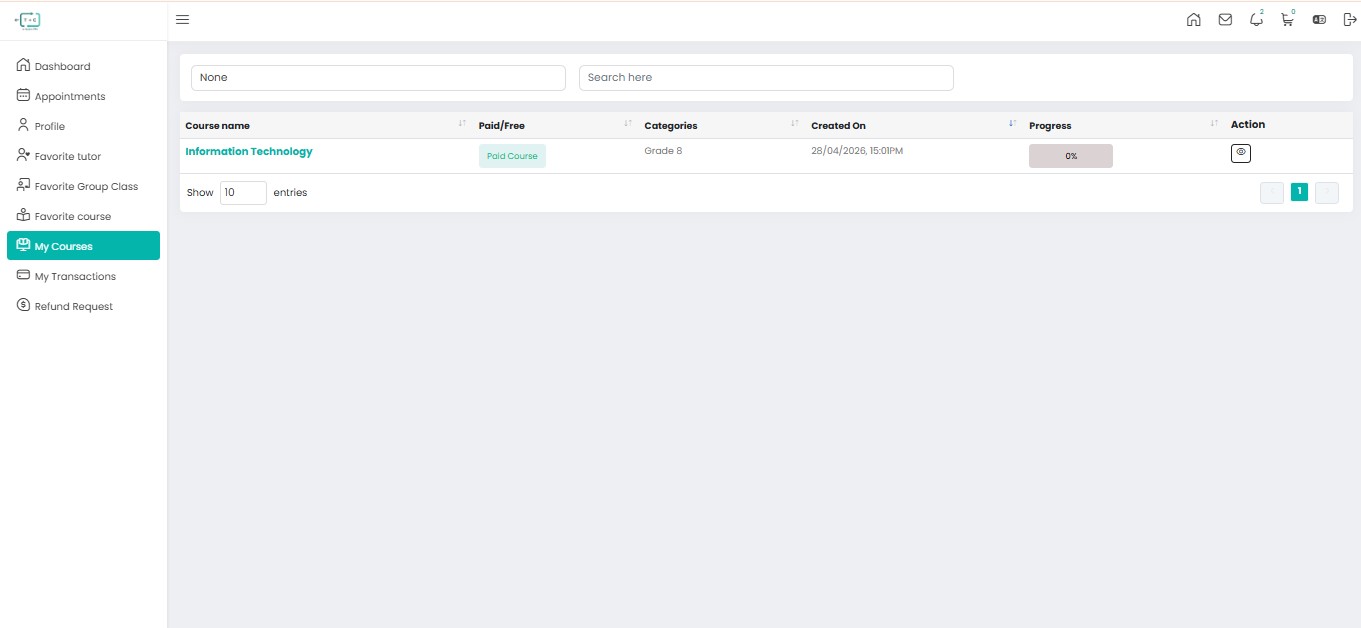
To view the courses you are currently enrolled in:
- Open the Sidebar on the left side of the dashboard.
- Click on the My Courses tab (highlighted in teal).
13.1.1. The Course Overview Table
Your courses are organized in a detailed table for quick reference. Here is what each column represents:
| Column | Description |
|---|---|
| Course Name | The title of the program you are enrolled in (e.g., Information Technology). |
| Paid/Free | Indicates the enrollment type (e.g., Paid Course). |
| Categories | Shows the target academic level (e.g., Grade 8). |
| Created On | The date and time your enrollment was finalized. |
| Progress | A visual percentage bar showing how much of the course you have completed. |
| Action | Click the Eye Icon to open the full course player and start learning. |
13.1.2. Course Details & Content
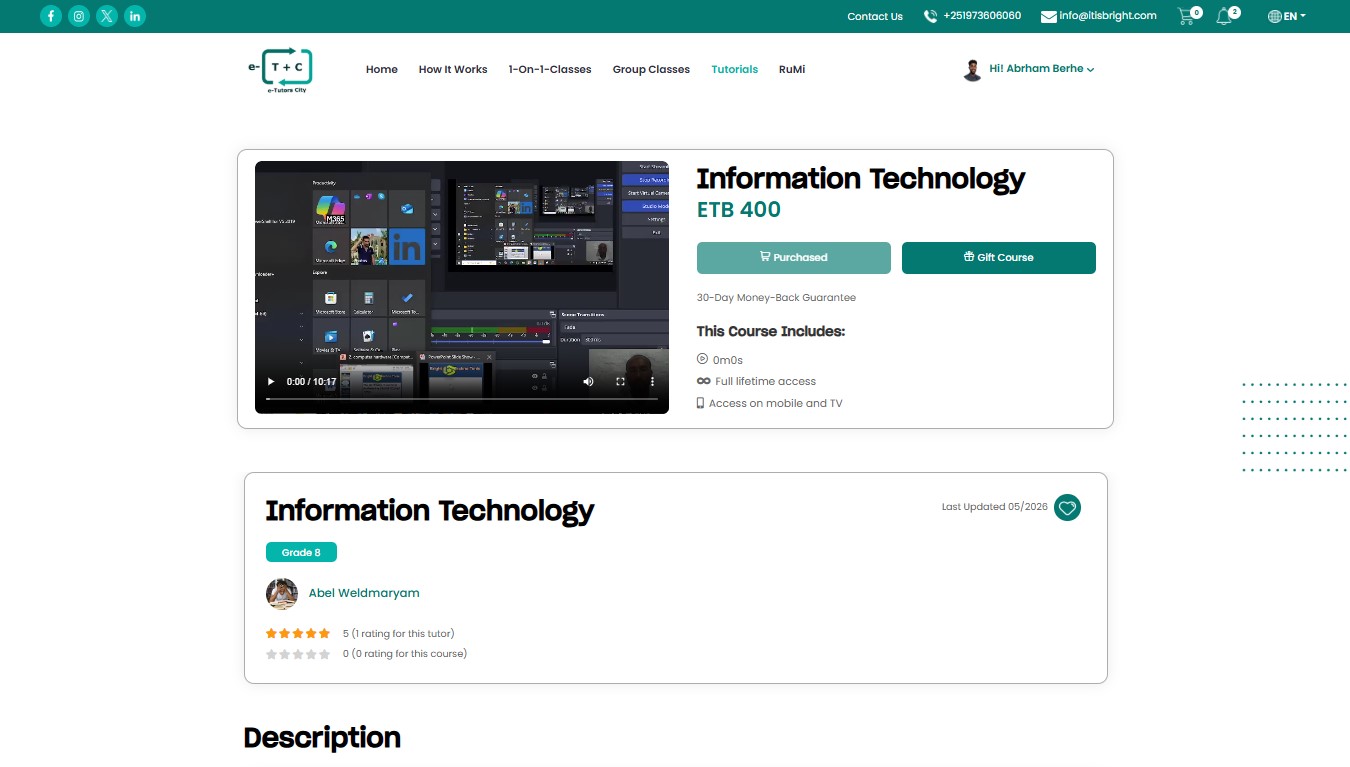
Once you select a course, you will be directed to the Course Content page. This area is divided into several informative sections:
1. Course Progress & Curriculum
At the top of the page, you can see your total progress across all sections and lectures.
- Sections: Large modules of study (e.g., Information Technology (IT)).
- Lectures: Individual lessons within those sections.
- Duration: Total video or study time for that module.
2. Course Description
This section provides a formal definition of the subject matter and outlines what you will learn.
- Objectives: "At the end of my course, students will be able to..."
- Requirements: Any prerequisites or knowledge needed before starting.
3. Student Community
You can view a list of other students enrolled in the same course, fostering a sense of community and collaborative learning.
13.3. Taking Action
13.3.1. Resuming a Lesson
To continue where you left off, simply click the Action icon in the My Courses table. The platform will automatically load your current progress.
13.3.2. Gifting a Course
If you find a course particularly valuable, you can use the Gift Course button on the course information page to share the enrollment with another student.
Note: Course content accessibility depends on your payment status. If a course is marked as Paid, ensure your transaction is successful under the My Transactions tab to maintain access.