10. Appointments
10.1. Managing Your Appointments
The Appointments page is your primary schedule for all learning activities. It is divided into three specialized tabs to help you track individual, group, and AI-led sessions.
10.1.1. One-on-One Classes
This tab lists all private sessions you have booked with individual tutors.
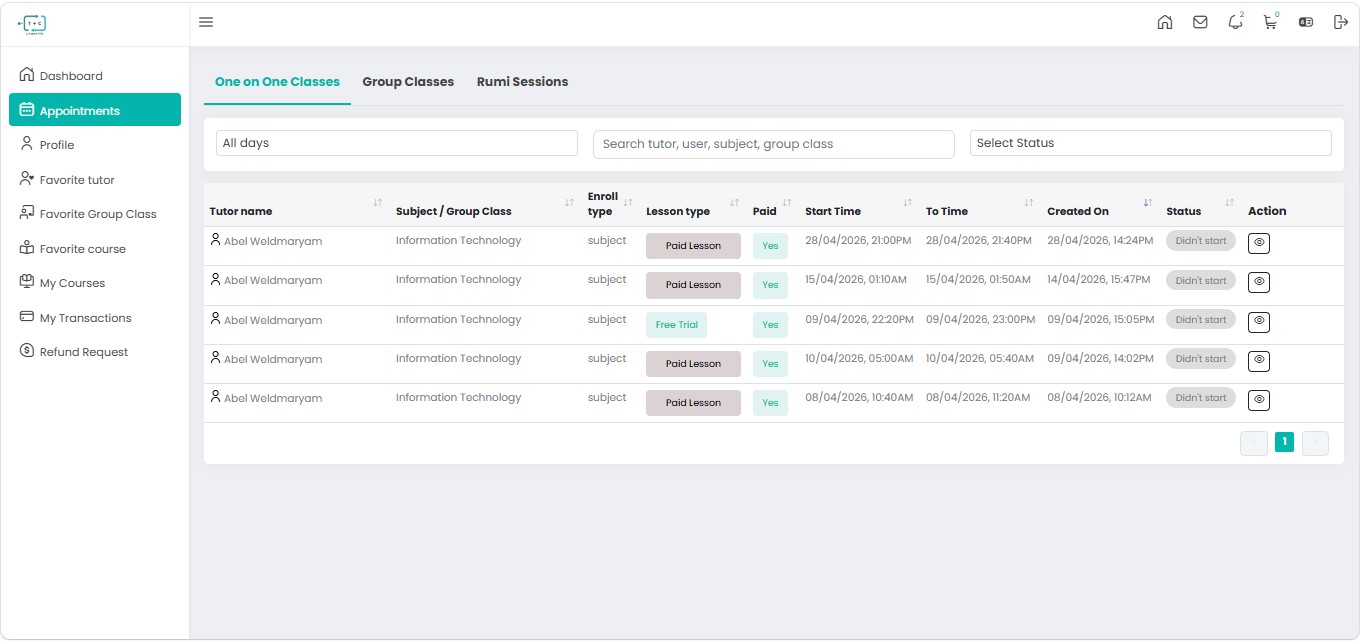
- Tutor Name: Displays the professional assigned to your session.
- Lesson Type: Differentiates between Free Trials and Paid Lessons.
- Payment Status: A green "Yes" indicates the session is successfully funded.
- Schedule: Shows the exact Start Time and End Time.
- Action: Click the Eye Icon to view specific session details or join the classroom link when active.
10.1.2. Group Classes
View the status of your enrollments in collaborative group sessions.
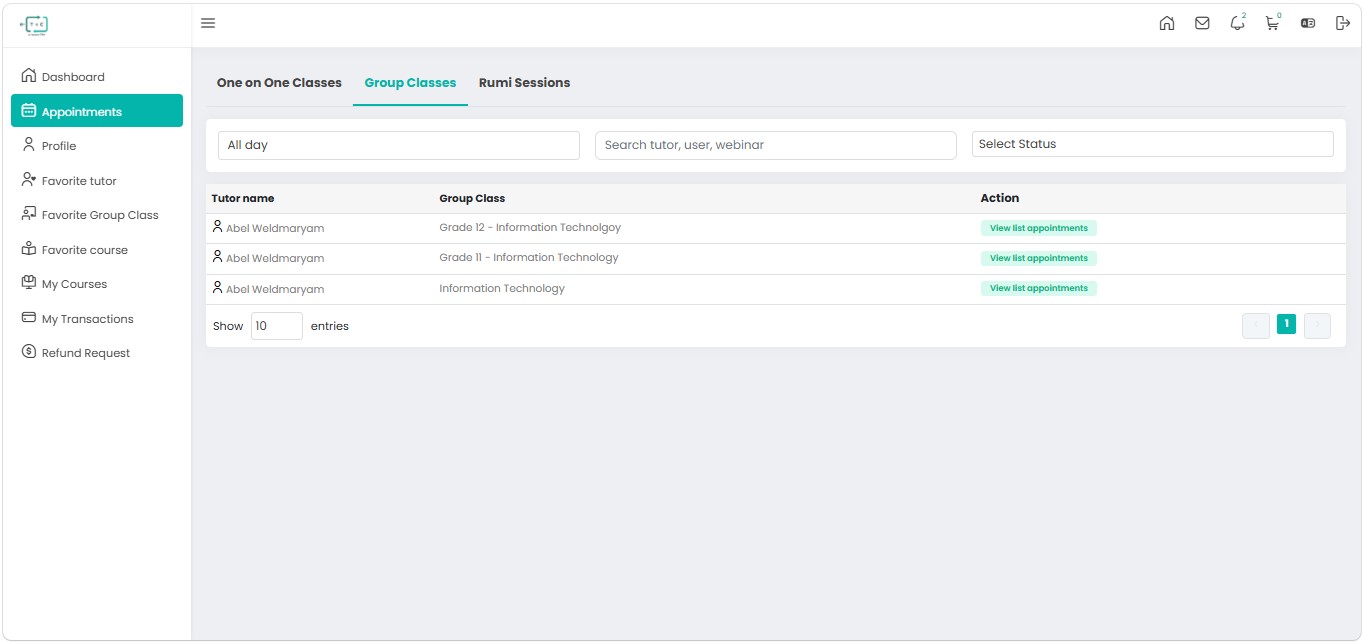
- Group Class Title: Displays the specific course name (e.g., Grade 12 - Information Technology).
- View List Appointments: Use this button to see the full recurring schedule for that specific group module.
- Status Tracking: Monitor how many sessions in the group series are upcoming or completed.
10.1.3. RuMi AI Sessions
Track your history and scheduled time with your 24/7 AI Tutor, RuMi.
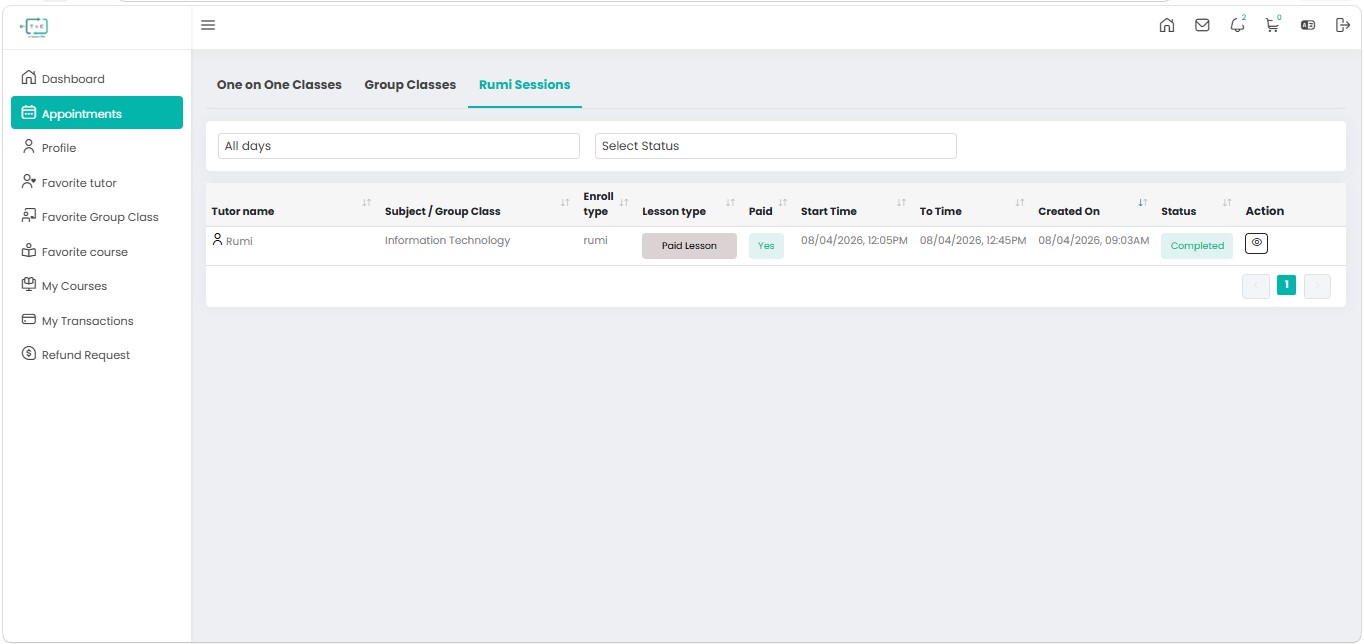
- Enroll Type: Specifically labeled as "RuMi" for easy identification.
- Status: Shows if an AI session is Completed or currently active.
- Session Log: You can revisit the time and date of your previous AI interactions to track your self-paced learning frequency.
10.1.4. Filtering & Search
To quickly find a specific lesson, use the filter bar at the top of any tab:
- Date Filter: Search for sessions on "All days" or a specific calendar date.
- Search Bar: Type the name of a tutor, a subject, or a specific group class topic.
- Status Selector: Filter by "Pending," "Completed," or "Canceled" to organize your history.
info
Pro Tip Always check the Start Time column at least 10 minutes before your class begins. For live One-on-One or Group classes, the "Join" button will typically become active shortly before the scheduled time.